Summer GamesSummer Games
esc

Popular

↑↓ Navigate⌘K to open and closeSearch ↵
Upload
Summer Games

Great games. New possibilities. A little more Summer.

Store

  • All games
  • Upcoming and game jams
  • Desktop app
  • Item shop
  • Mods
  • Game lists
  • Made with Summer Engine
  • Idea Board
  • Sparks

Account

  • Library
  • Purchases
  • Settings
  • Connect an AI app

For developers

  • Publish your game
  • For studios
  • Build with Summer Engine
  • Roadmap

Help & legal

  • Support
  • Press
  • Brand kit
  • Terms
  • Privacy
  • Refunds
  • Parents’ guide
  • Community standards

© 2026 Summer Labs, Inc. All rights reserved.

  • Home
  • Games
  • Shop
  • Upcoming
  • You
GamesUpcomingItem shopIdeas
Get the app
Video by the creator

Halo: Combat Evolved × Super Mario 64

SMC64

Play Halo: Combat Evolved as Mario, with Super Mario 64’s real movement, punches and kicks against the Covenant.

Play SMC64

  1. Step 1: Copy the prompt
  2. Step 2: Paste it into Claude Code or Codex
  3. Step 3: Your agent sets it up. Play.

Free. You need your own Halo: Combat Evolved and Super Mario 64 on a Windows PC.

See what the prompt does
Help me install and play "SMC64" (Halo: Combat Evolved x Super Mario 64), a fan-made mod by KodyJKing: https://github.com/KodyJKing/smc64

Do the technical work yourself and tell me plainly what you could not do or test. Downloads are your job, not mine: get the mod and everything it needs (loaders, launchers, runtimes) from their official sources, and tell me what you installed and where. Only hand something to me when it truly needs me (a login, a purchase, a Windows permission prompt), with the direct link and exactly what to click.

1. Read the project's README and latest release first. Tell me in two or three lines what it is, what it needs, and anything its known issues say I should avoid.
2. Find my copies of the games yourself (Steam, Epic, Xbox and other library folders). If one is missing, or is the wrong version for this mod, stop and tell me what to get. Never download games, game files or ROMs from anywhere; the mod runs on copies I own.
3. Safety check before anything runs: download only from the creator's release linked above and the official sites of the loaders it names. Scan every downloaded file with Microsoft Defender ("%ProgramFiles%\Windows Defender\MpCmdRun.exe" -Scan -ScanType 3 -File "<the download folder>"), and read the project's open issues for security reports. If anything is flagged, stop and tell me what and where. Don't run anything as administrator unless the README requires it, and ask me first.
4. Before changing anything, back up every game file and save you will touch, and keep a list of what you change so I can undo it.
5. Install the mod exactly as its README says, using the loaders it names. If the README offers a mod manager route and a manual route, pick the one that needs less from me.
6. Start the game the way the README says and check that it loads (the README usually says how to tell). If it fails, read the logs, fix what you can, and tell me what is left.
7. If it has multiplayer, tell me in one or two lines how my friends join.
8. Finish with: what you installed, what the safety check found, how I start it next time, and how I remove it and restore my files.

Play offline when the mod says so, and never use it in online modes with anti-cheat. If you get stuck on how the game or mod works, universal-modder (https://github.com/rehan-remade/universal-modder) has skills for working out a game's engine and loaders.

Start now: begin with step 1.


Requires
Halo: Combat Evolved, Super Mario 64. Free if you own both.
Price
Free to play
Platform
Windows PC
Made by
KodyJKing
Players
Single player

About

Play Halo: Combat Evolved as Super Mario 64's Mario. Run, jump and wall kick through the campaign, fight its enemies and get in and out of its vehicles.

  • Super Mario 64's movement through Halo: Combat Evolved's campaign levels
  • Fight Halo's enemies as Mario
  • Get in and out of Halo's vehicles
  • Remap every Mario control, with an in-game keybind menu
  • Zoom the camera in and out
  • ▶Kody King's alpha release video
Open in ClaudeOpen in ChatGPT

You need

  • Halo: The Master Chief Collection on Steam
  • Your own Super Mario 64 ROM (US version)
  • Windows PC, started without Easy Anti-Cheat

Heads-up

  • Alpha: expect crashes, bugs and soft-locks
  • Start MCC without Easy Anti-Cheat
  • The maps download replaces Halo CE map files; back yours up first, or restore them with Steam's Verify Integrity
  • A crash on The Truth and Reconciliation is still being fixed

A fan project by KodyJKing, hosted on their page (v0.0.4-alpha, none stated). Not affiliated with the games’ publishers. Mods notice

More mods

See all
  • Free to playER MarioActionSouls-likePlatformerPlayFree to play
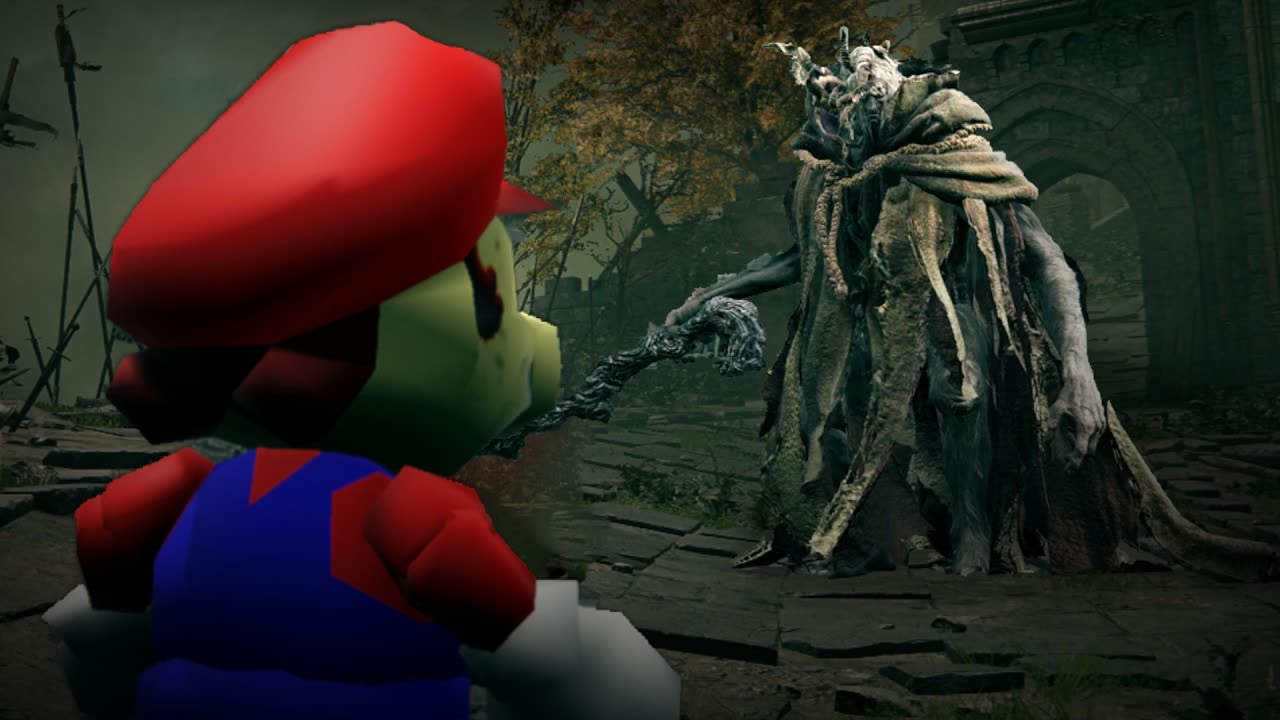
    ER MarioElden Ring × Super Mario 64

    Play ER Mario

    1. Step 1: Copy the prompt
    2. Step 2: Paste it into Claude Code or Codex
    3. Step 3: Your agent sets it up. Play.

    Free. You need your own Elden Ring and Super Mario 64 on a Windows PC.

    See what the prompt does
    Help me install and play "ER Mario" (Elden Ring x Super Mario 64), a fan-made mod by deltarooo: https://github.com/deltarooo/er-mario
    
    Do the technical work yourself and tell me plainly what you could not do or test. Downloads are your job, not mine: get the mod and everything it needs (loaders, launchers, runtimes) from their official sources, and tell me what you installed and where. Only hand something to me when it truly needs me (a login, a purchase, a Windows permission prompt), with the direct link and exactly what to click.
    
    1. Read the project's README and latest release first. Tell me in two or three lines what it is, what it needs, and anything its known issues say I should avoid.
    2. Find my copies of the games yourself (Steam, Epic, Xbox and other library folders). If one is missing, or is the wrong version for this mod, stop and tell me what to get. Never download games, game files or ROMs from anywhere; the mod runs on copies I own.
    3. Safety check before anything runs: download only from the creator's release linked above and the official sites of the loaders it names. Scan every downloaded file with Microsoft Defender ("%ProgramFiles%\Windows Defender\MpCmdRun.exe" -Scan -ScanType 3 -File "<the download folder>"), and read the project's open issues for security reports. If anything is flagged, stop and tell me what and where. Don't run anything as administrator unless the README requires it, and ask me first.
    4. Before changing anything, back up every game file and save you will touch, and keep a list of what you change so I can undo it.
    5. Install the mod exactly as its README says, using the loaders it names. If the README offers a mod manager route and a manual route, pick the one that needs less from me.
    6. Start the game the way the README says and check that it loads (the README usually says how to tell). If it fails, read the logs, fix what you can, and tell me what is left.
    7. If it has multiplayer, tell me in one or two lines how my friends join.
    8. Finish with: what you installed, what the safety check found, how I start it next time, and how I remove it and restore my files.
    
    Play offline when the mod says so, and never use it in online modes with anti-cheat. If you get stuck on how the game or mod works, universal-modder (https://github.com/rehan-remade/universal-modder) has skills for working out a game's engine and loaders.
    
    Start now: begin with step 1.
  • Free to playFortCraftShooterSandboxActionPlayFree to play
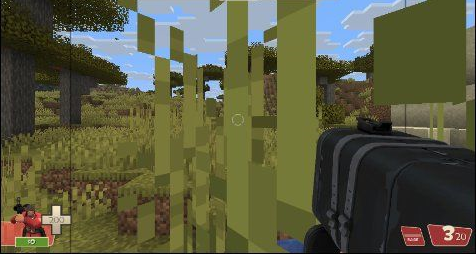
    FortCraftMinecraft × Team Fortress 2

    Play FortCraft

    Summer checks your games and sets up FortCraft when you press Play in the desktop app. You need Minecraft: Java Edition and the free Team Fortress 2 and Source SDK Base 2013 Multiplayer.

    Checking for the latest version…

    Get Summer Games

  • Free to play2010 Rust RewriteShooterSkateboardingSandboxMultiplayerPlayFree to play
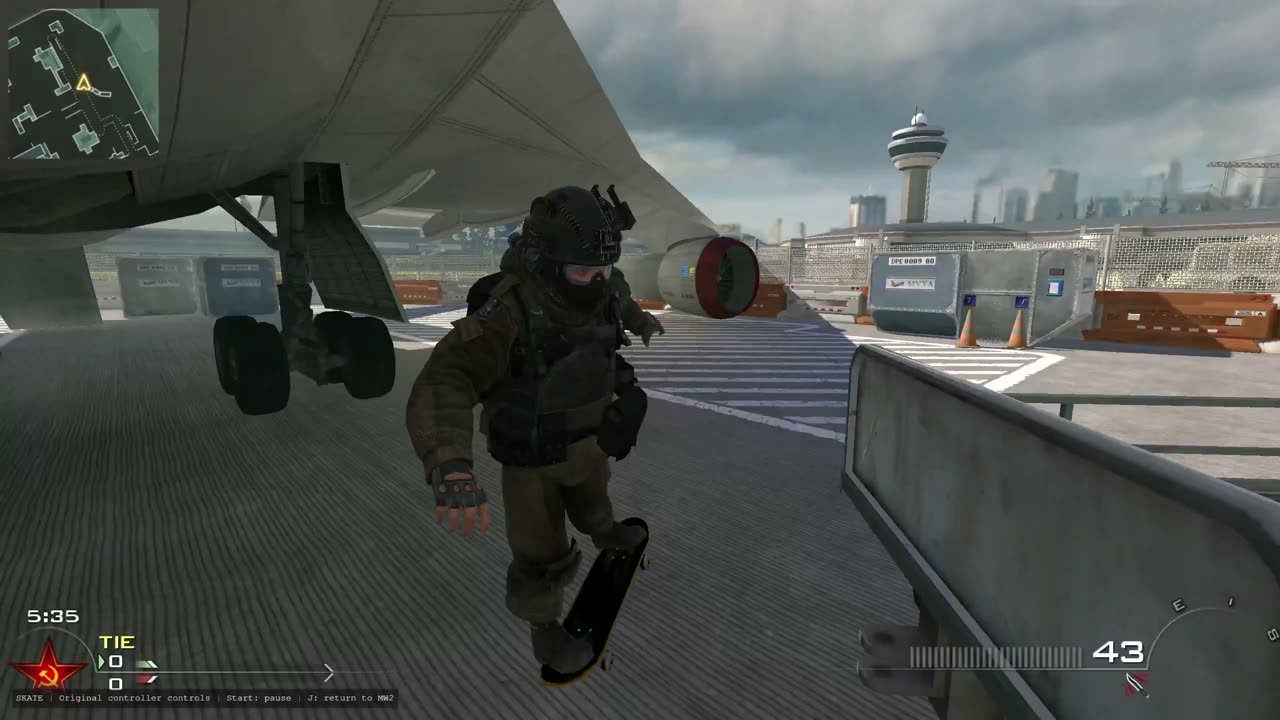
    2010 Rust RewriteModern Warfare 2 × Skate 3 × Minecraft

    Play 2010 Rust Rewrite

    1. Step 1: Copy the prompt
    2. Step 2: Paste it into Claude Code or Codex
    3. Step 3: Your agent sets it up. Play.

    Free. You need your own Modern Warfare 2 and Skate 3 and Minecraft on a Windows PC.

    See what the prompt does
    Help me install and play "2010 Rust Rewrite" (Modern Warfare 2 x Skate 3 x Minecraft), a fan-made mod by chasmlol: https://github.com/chasmlol/2010-rust-rewrite-mashup
    
    Do the technical work yourself and tell me plainly what you could not do or test. Downloads are your job, not mine: get the mod and everything it needs (loaders, launchers, runtimes) from their official sources, and tell me what you installed and where. Only hand something to me when it truly needs me (a login, a purchase, a Windows permission prompt), with the direct link and exactly what to click.
    
    1. Read the project's README and latest release first. Tell me in two or three lines what it is, what it needs, and anything its known issues say I should avoid.
    2. Find my copies of the games yourself (Steam, Epic, Xbox and other library folders). If one is missing, or is the wrong version for this mod, stop and tell me what to get. Never download games, game files or ROMs from anywhere; the mod runs on copies I own.
    3. Safety check before anything runs: download only from the creator's release linked above and the official sites of the loaders it names. Scan every downloaded file with Microsoft Defender ("%ProgramFiles%\Windows Defender\MpCmdRun.exe" -Scan -ScanType 3 -File "<the download folder>"), and read the project's open issues for security reports. If anything is flagged, stop and tell me what and where. Don't run anything as administrator unless the README requires it, and ask me first.
    4. Before changing anything, back up every game file and save you will touch, and keep a list of what you change so I can undo it.
    5. Install the mod exactly as its README says, using the loaders it names. If the README offers a mod manager route and a manual route, pick the one that needs less from me.
    6. Start the game the way the README says and check that it loads (the README usually says how to tell). If it fails, read the logs, fix what you can, and tell me what is left.
    7. If it has multiplayer, tell me in one or two lines how my friends join.
    8. Finish with: what you installed, what the safety check found, how I start it next time, and how I remove it and restore my files.
    
    Play offline when the mod says so, and never use it in online modes with anti-cheat. If you get stuck on how the game or mod works, universal-modder (https://github.com/rehan-remade/universal-modder) has skills for working out a game's engine and loaders.
    
    Start now: begin with step 1.
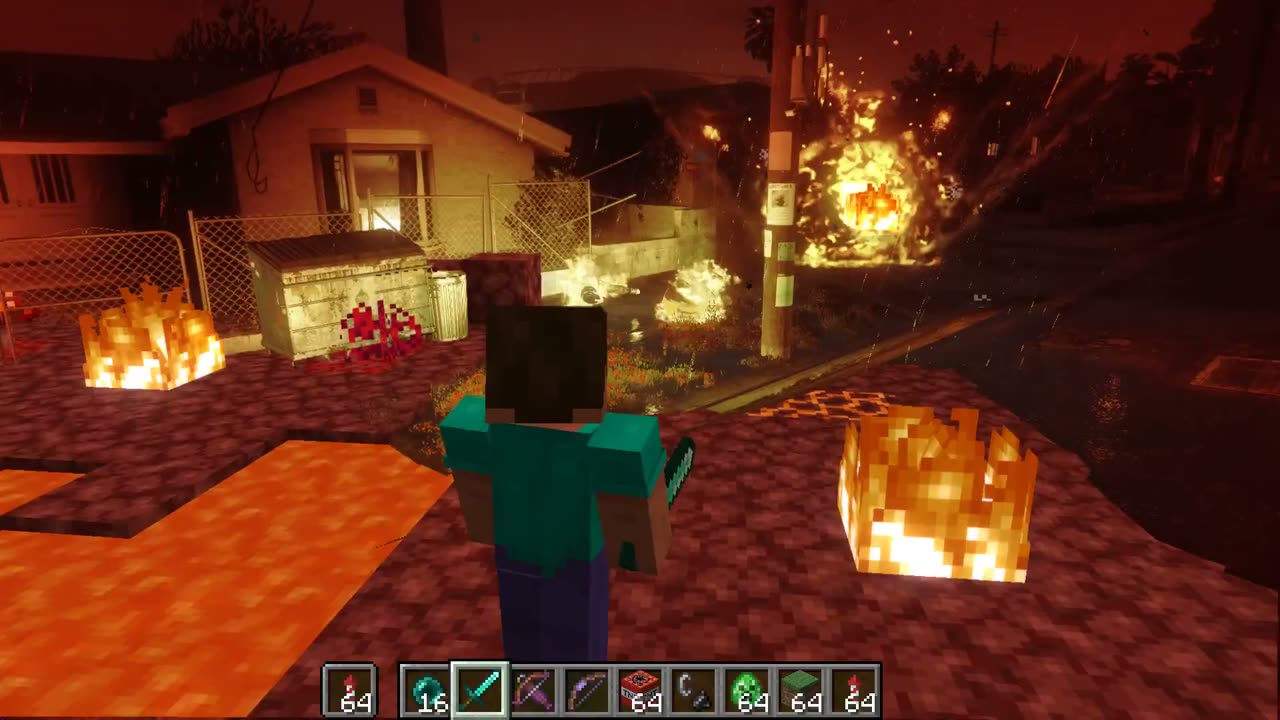
  • Free to playMinecraft in GTA VOpen worldSandboxActionPlayFree to play
    Minecraft in GTA VGTA V × Minecraft

    Play Minecraft in GTA V

    1. Step 1: Copy the prompt
    2. Step 2: Paste it into Claude Code or Codex
    3. Step 3: Your agent sets it up. Play.

    Free. You need your own GTA V and Minecraft on a Windows PC.

    See what the prompt does
    Help me install and play "Minecraft in GTA V" (GTA V x Minecraft), a fan-made mod by rehan-remade: https://github.com/rehan-remade/universal-modder/tree/main/examples/minecraft-gta5-passthrough
    
    Do the technical work yourself and tell me plainly what you could not do or test. Downloads are your job, not mine: get the mod and everything it needs (loaders, launchers, runtimes) from their official sources, and tell me what you installed and where. Only hand something to me when it truly needs me (a login, a purchase, a Windows permission prompt), with the direct link and exactly what to click.
    
    1. Read the project's README and latest release first. Tell me in two or three lines what it is, what it needs, and anything its known issues say I should avoid.
    2. Find my copies of the games yourself (Steam, Epic, Xbox and other library folders). If one is missing, or is the wrong version for this mod, stop and tell me what to get. Never download games, game files or ROMs from anywhere; the mod runs on copies I own.
    3. Safety check before anything runs: download only from the creator's release linked above and the official sites of the loaders it names. Scan every downloaded file with Microsoft Defender ("%ProgramFiles%\Windows Defender\MpCmdRun.exe" -Scan -ScanType 3 -File "<the download folder>"), and read the project's open issues for security reports. If anything is flagged, stop and tell me what and where. Don't run anything as administrator unless the README requires it, and ask me first.
    4. Before changing anything, back up every game file and save you will touch, and keep a list of what you change so I can undo it.
    5. Install the mod exactly as its README says, using the loaders it names. If the README offers a mod manager route and a manual route, pick the one that needs less from me.
    6. Start the game the way the README says and check that it loads (the README usually says how to tell). If it fails, read the logs, fix what you can, and tell me what is left.
    7. If it has multiplayer, tell me in one or two lines how my friends join.
    8. Finish with: what you installed, what the safety check found, how I start it next time, and how I remove it and restore my files.
    
    Play offline when the mod says so, and never use it in online modes with anti-cheat. If you get stuck on how the game or mod works, universal-modder (https://github.com/rehan-remade/universal-modder) has skills for working out a game's engine and loaders.
    
    Start now: begin with step 1.
  • Home
  • Games
  • Shop
  • Upcoming
  • You